Integration: Quorum AFE Execute
Petrosight can integrate directly with Quorum AFE Execute to automatically pull AFE Estimate & Actual values and push Field Estimates. Synchronization between the systems, once configured, happens automatically based on events that occur within PetroSight during normal use. This guide will outline how to configure the AFE Execute integration and how the integration itself works.
Preliminary Requirements
There are a number of requirements that must be met for Petrosight to properly integrate with AFE Execute. Previous versions of the AFE Execute product were branded as AFE Navigator and may be used interchangeably.
- Petrosight Integration Features - This is an assignable feature, please contact support@petrosight.ca to confirm access
- AFE Execute current version or AFE Navigator version 8.1 or newer (AFE Navigator 2017 is the next version after 8.1).
- AFE Execute must be accessible from the internet
- If mobile access is enabled then this requirement is met
- Petrosight can provide a list of IP addresses used to connect to the AFE Execute service for security purposes
- An AFE Execute account with username & password to be used by Petrosight Platform to connect to AFE Execute
- Permissions on the account must align with the desired integration. Read-only for Estimate and Actuals synchronization or Read-Write when updating Field Costs
Configure AFE Execute Integration
Company Integrations Page
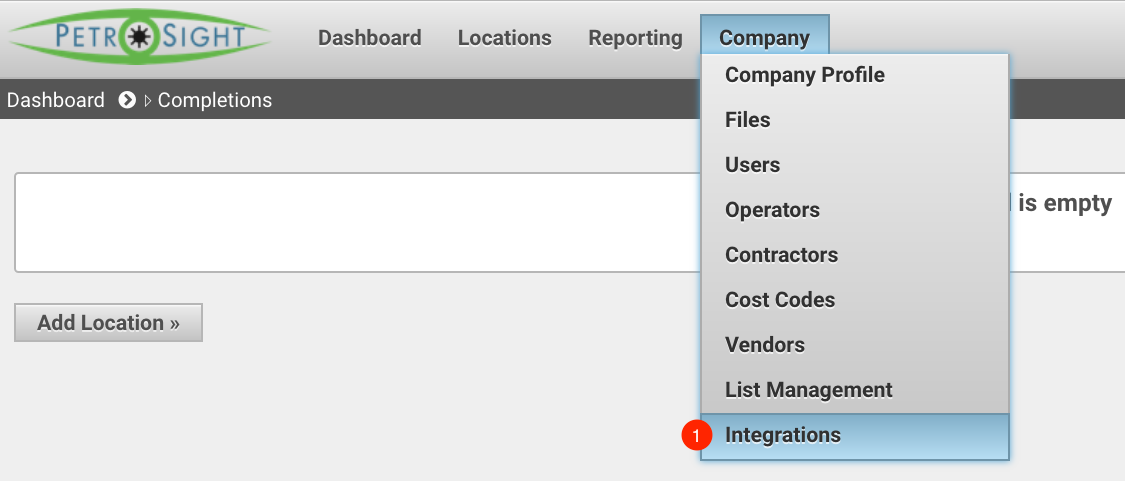
Go to the Integrations page by selecting Integrations from the top Company menu.
Note: Should the menu item not be available, please contact our support team to upgrade your account
Add Integration
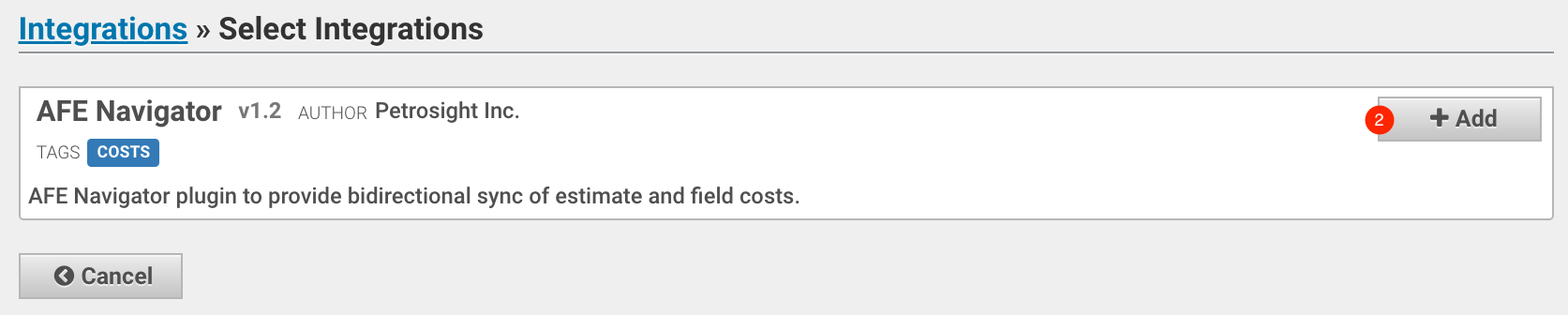
If the AFE Execute integration is not already added to your account add it by clicking the Add Integration button and from the list selecting AFE Navigator or AFE Execute. These may be used interchangeably.

Configure Integration
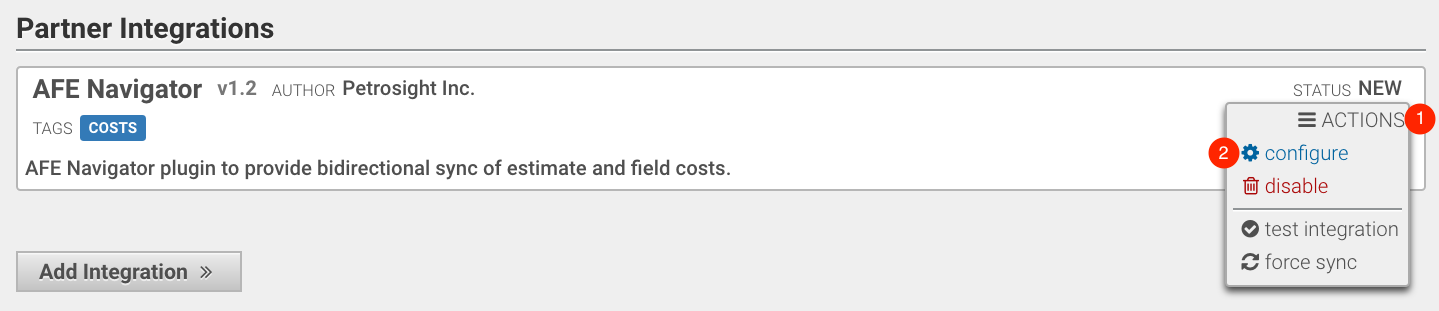
From the newly added AFE Execute Integration entry hover the ACTIONS menu and select the Configure Option.
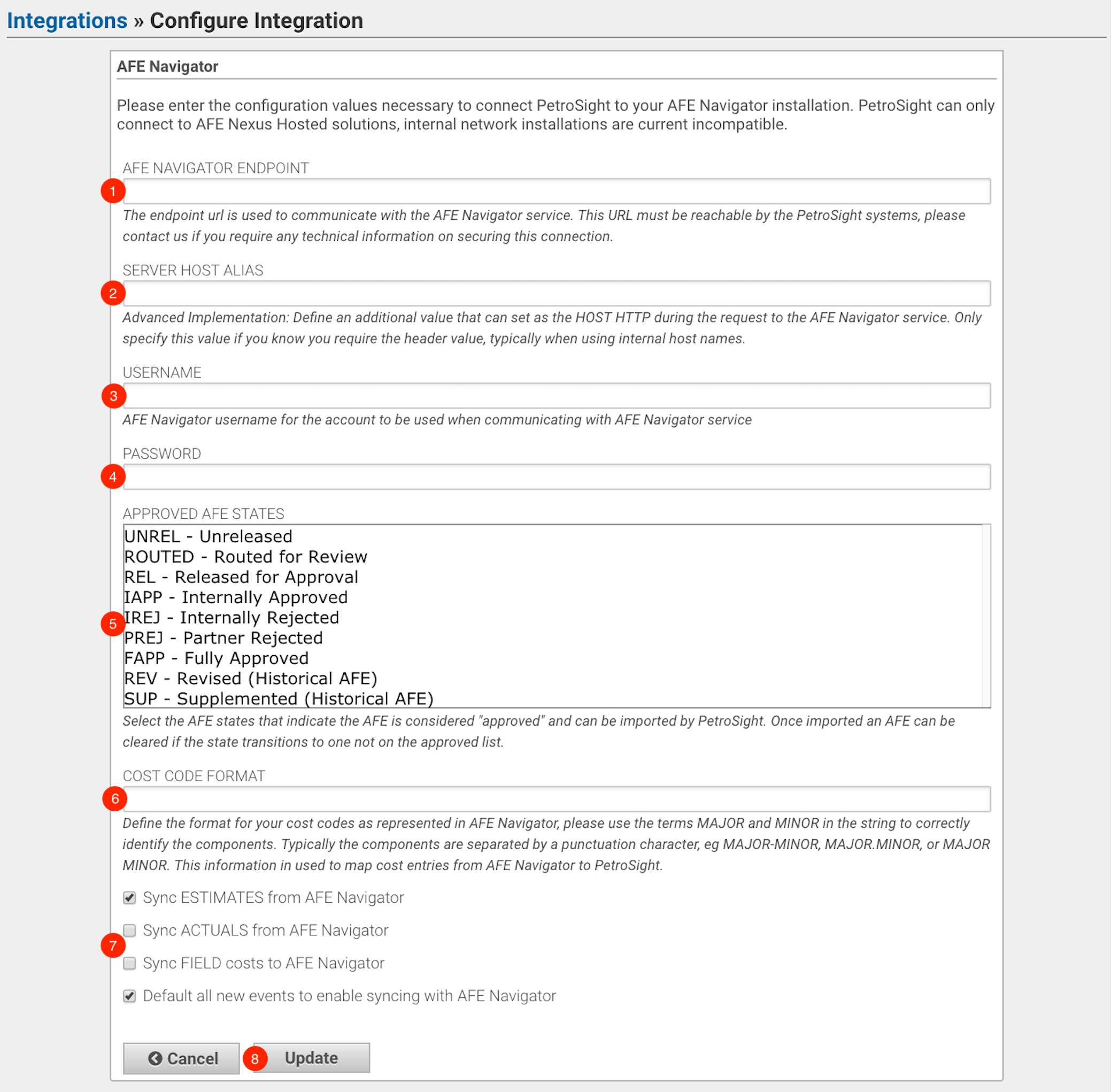
Fill out the form with the necessary values.
- ENDPOINT - This is the internet accessible address that Petrosight will use to access the AFE Execute service. Usually in the format of https://afenav.domain.com:12345/ or similar. In most cases there will not be a path specified.
- SERVER HOST ALIAS - For advanced implementations where an IP Address is specified for item #1 but the service is configured to require an internal domain name such as https://internal-afe-execute-address:12345/ when working on the corporate network, enter the
internal-afe-execute-addressvalue here. In most cases this field will be left blank. - USERNAME - The account username for Petrosight to use
- PASSWORD - The account password for the above username
- APPROVED AFE STATES - Select all of the AFE Execute states that Petrosight will accept data for. Most common is
FAPP - Fully Approved,REV - Revised, andSUP - Supplemented. HoldCTRLto select multiple entries. - COST CODE FORMAT - Enter the format for the cost codes that are used in your AFE Execute installation using the keywords
MAJORandMINOR. See the field note for more details. - Feature Selection - The set of checkboxes configures how the integration will work. By default Petrosight attempts to get ESTIMATE values from the AFE Execute service. Check all of the options you wish to enable.
Once configured click Update, the system will validate your entries and if they appear correct will queue a test event for your AFE Execute integration.